Managing Existing Badges
- Navigate to Badges: Go to the Badges section under Content in your admin dashboard.
- Edit Badge:
- Select a badge to update its details, such as description, tags, or visual elements. Make necessary changes and click SAVE to keep your edits.
- Duplicate Badge:
- If you want to create a new badge based on an existing one, select DUPLICATE. This creates a copy of the badge with all existing information, which you can then modify as needed without affecting the original.
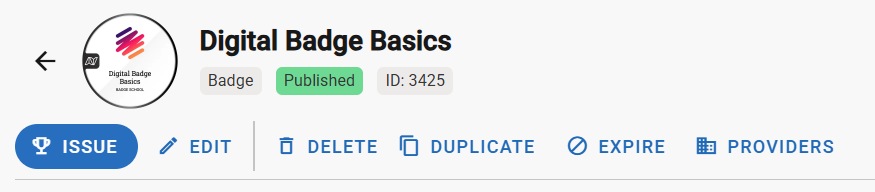
- If you want to create a new badge based on an existing one, select DUPLICATE. This creates a copy of the badge with all existing information, which you can then modify as needed without affecting the original.
- Expire or Delete Badge:
- Expire: Expired badges will not appear in public places such as the Discover page (they will still be visible in the admin dashboard). They will no longer be earnable, but earners who have previously claimed the badge will keep it.
- Delete: Deleting a badge permanently removes it from the system and revokes it from all previous recipients. This action is irreversible, so use it with caution. For badges that have already been issued, consider expiring instead so that recipients don't lost access.
To view and manage the people who have received a badge, see How to Manage Badge Recipients.
For further assistance with managing badges, please reach out to support@navigatr.app.
Was this article helpful?
That’s Great!
Thank you for your feedback
Sorry! We couldn't be helpful
Thank you for your feedback
Feedback sent
We appreciate your effort and will try to fix the article