Every Navigatr user has a unique QR code on their profile. When you issue a badge via QR Code, you scan their personal code with your device's camera and the badge is issued to them instantly. No email address needed. No forms to fill in.
It is the fastest way to issue badges in person. It works well for:
- Training sessions and workshops
- Events and conferences
- In-person assessments
- Any situation where collecting email addresses is not practical
The learner shows their QR code on their phone. You scan it. The badge appears on their profile straight away.
Before You Start
- You need a published badge on your Navigatr account. Not created one yet? See How to Create a Badge.
- Your device needs a camera. A phone, tablet, or laptop all work.
- The recipient needs a Navigatr account with their QR code ready. If they do not have one, they can sign up free as an individual.
Step 1 — The Recipient Opens Their QR Code
Ask the recipient to open their Navigatr profile and tap the QR code icon in their profile page. A dialog will appear showing their unique QR code.
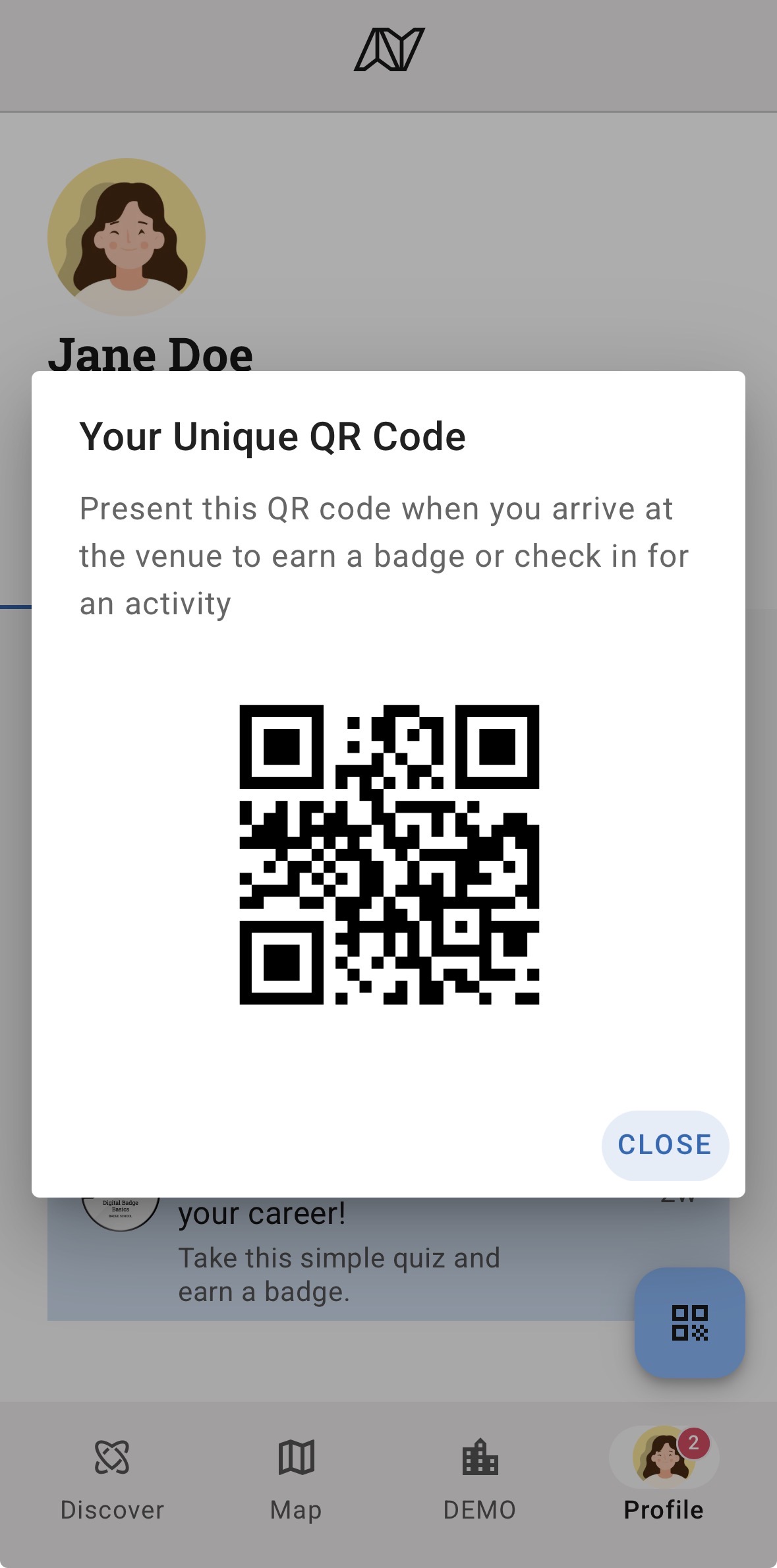
Learner profile showing the "Your Unique QR Code" dialog with the QR code displayed
Step 2 — Open the Badge and Choose Via QR Code
Log in and go to Content > Badges. Select the badge you want to issue, click ISSUE, and choose Via QR Code from the options.
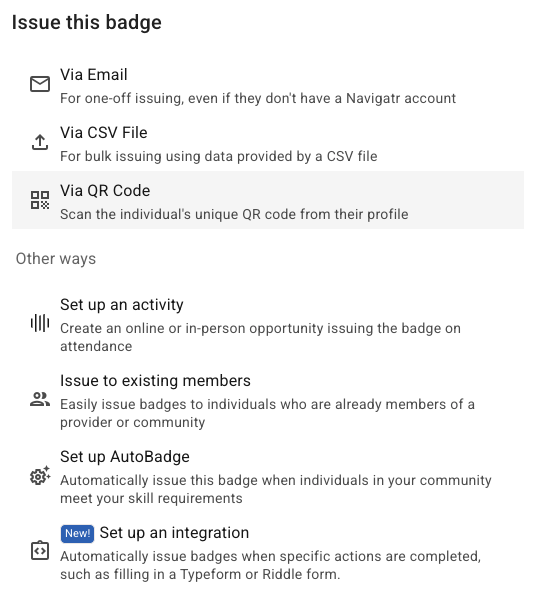
Issue badge panel showing the "Via QR Code" option selected
Step 3 — Scan the Recipient's QR Code
The scanner opens and activates your device's camera. Ask the recipient to hold their QR code up to the screen. Once the code is read, a confirmation appears with the recipient's name and a success message.
The badge is issued immediately and added to their profile. No action is needed from the recipient.
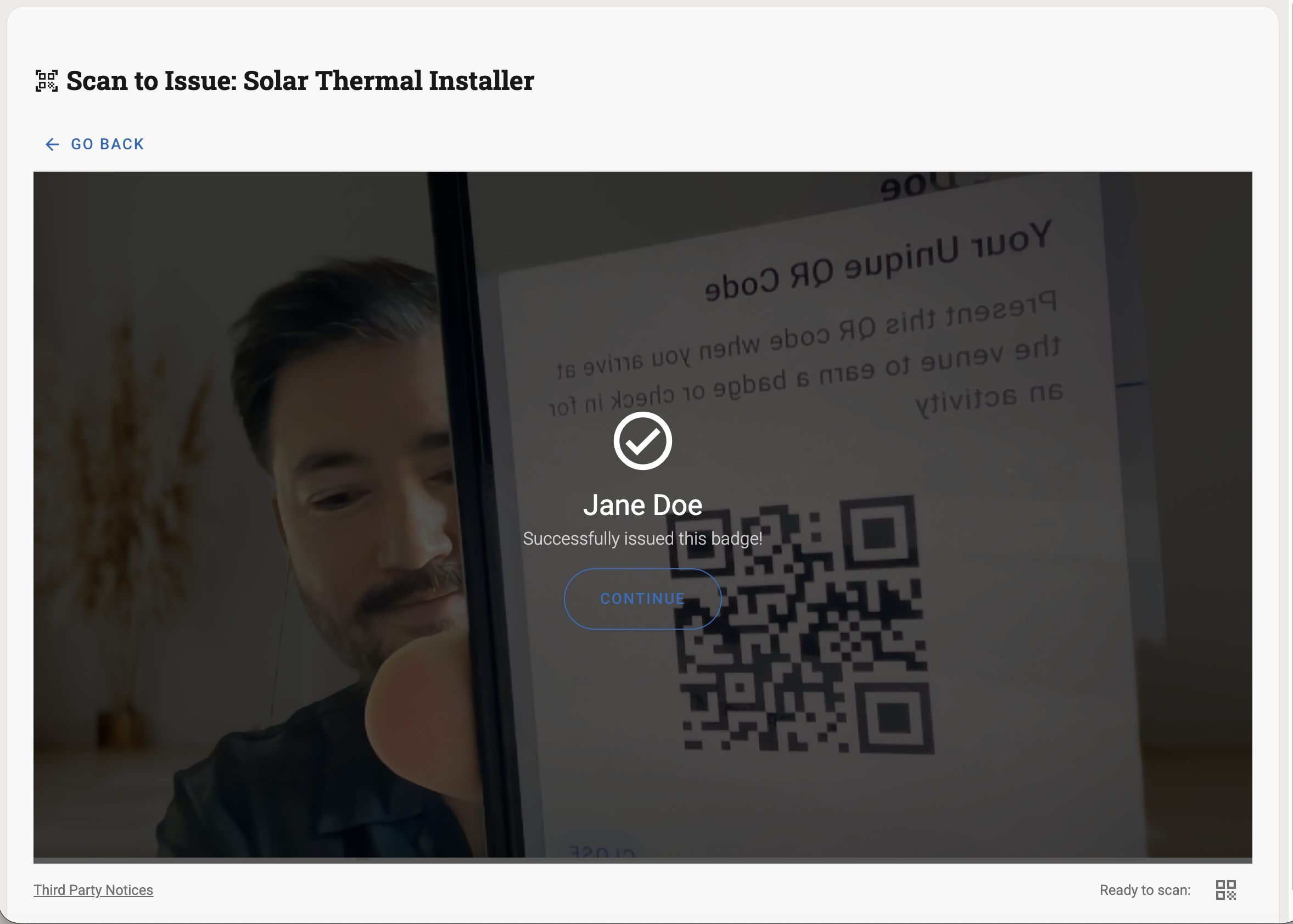
Scanner screen showing successful badge issue with the Continue button
Step 4 — Issue to the Next Person (Optional)
Tap Continue to return to the scanner. You can issue the same badge to the next person straight away without leaving the screen. This works well when working through a group at an event.
Tracking Your Recipients
Go to the Recipients tab on the badge to see everyone who has been issued it. All QR Code issues appear alongside badges issued by other methods.
For more on managing recipients, see the How to Manage Badge Recipients guide.
Issuing Badges Remotely?
QR Code issuing works best when you are with the learner in person. If you need to issue badges without being physically present, you can set up a form that triggers a badge automatically when submitted. See Automate badge issuing with webhooks.
For further assistance, contact support@navigatr.app.
Was this article helpful?
That’s Great!
Thank you for your feedback
Sorry! We couldn't be helpful
Thank you for your feedback
Feedback sent
We appreciate your effort and will try to fix the article